Editing SAS Portal Framework for SAS Viya Content
Here we will deep dive how to add/remove a page, add/rempve an object to a page and how to change the page order display for the user. Please make sure that you have read the Introduction first as this page builds on it.
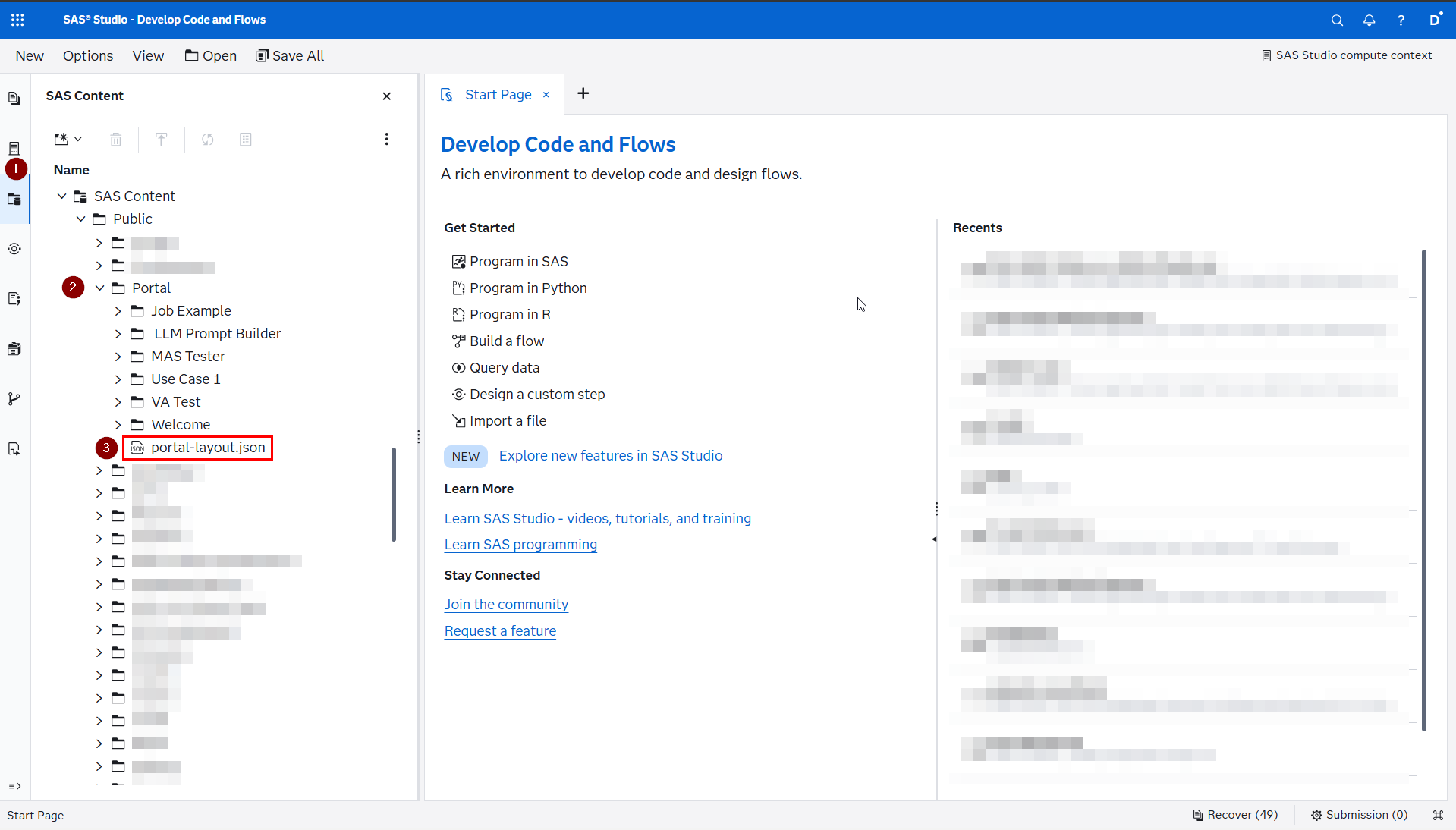
All editing of content for the SAS Portal is done using SAS Studio. So please go ahead an open up the main Portal (2)folder in the SAS Content (1) pane and you will see that JSON files are marked with an icon (3)
Pages
A page is the heart of how content is structured in the SAS Portal. Each page is represnted by a tab in the SAS Portal UI.
Adding a Page
- Create a new subfolder in the main Portal folder.
- Note: Subfolders inherit their authorization rules from their parent folder if the rules where applied to it as container - more information on this topic in the SAS Documentation.
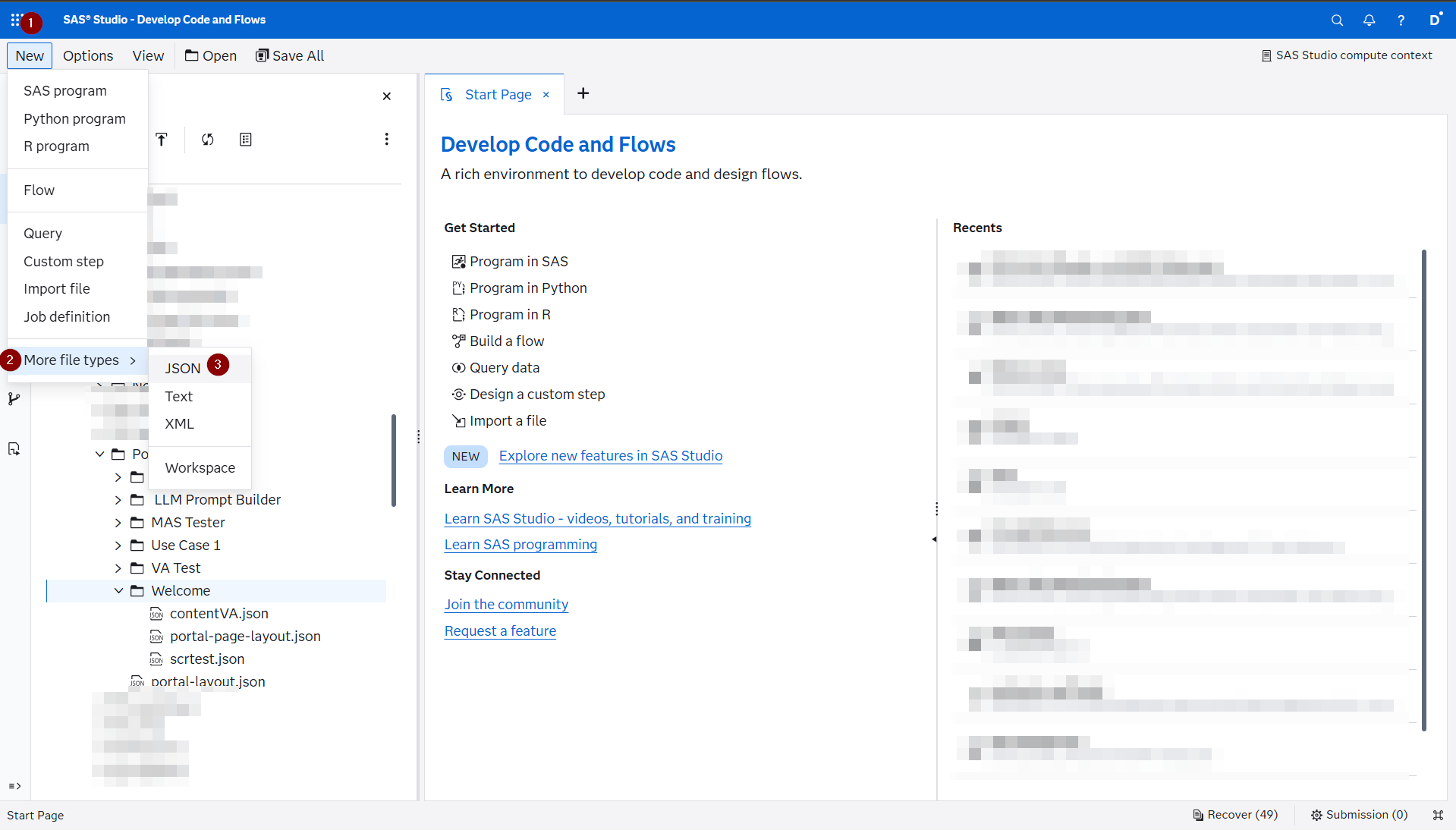
- Click on New > More file types > JSON this will open up a new JSON file in the main editor of SAS Studio.
- Next paste the following template into the JSON file and click save - of course changing the attributes as required. The attributes are explained on the Introduction page.
{
    "general": {
        "name": "Page Name",
        "shorthand": "PNT",
        "visible": true,
        "numCols": 1,
        "contact": "david.weik@sas.com"
    },
    "objects": [
        {
            "name": "Object One",
            "uri": "/files/files/{fileID}"
        },
        {
            "name": "Object Two",
            "uri": "/files/files/{fileID}"
        }
    ]
}
- Of course you will need all of the file IDs for objects in a folder that is what the helper macros below are for.
- Save it to the new subfolder that you created in the previous step.
Adding an Object
- Click on New > More file types > JSON this will open up a new JSON file in the main editor of SAS Studio.
.
- Copy the template of the object provided by the individual object documentation pages.
- Save it to the folder which represents the page that you want the file to show up in.
- Add an object entry to the
portal-page-layout.json, note that the name does not have to match the name of the JSON file. You can use the helper macros to get the URI of the file.
Adding Sort Order
The sort order is an optional file that overwrites the default sort of a SAS Portal (which is in alphapetical order of the folder names). If you use it and new folders are added you HAVE to add them to the file or they will not show up.
- Click on New > More file types > JSON this will open up a new JSON file in the main editor of SAS Studio.
.
- Next paste the following template into the JSON file:
{
    "displayOrder": [
        {
            "name": "Page Name 1",
            "uri": "/folders/folders/8ec75e4d-881c-4b1f-8203-d77b9866d029"
        },
        {
            "name": "Use Case 1",
            "uri": "/folders/folders/99ae9106-eac9-48ea-8c72-e00267125956"
        }
    ]
}
- Save the file as
portal-layout.jsonin the root SAS Portal folder. - In order to retrieve the URI of a folder make use of the helper macros.
Helper Macros
These macros provide easy ways to retrieve the necessary information for creating the portal-page-layout.json and the portal-layout.json files. It is recommended to save these scripts in some folder in SAS Content so that Portal Administrators can easily reuse them or even turning them into Snippet for even easier reuse.
Gettin the URI of a Folder
This script provides the ability to retrieve the URI of a folder to include it in the portal-layout.json:
* Specify the folder path for which you need the URI;
* You can right click an item and then from the Context Menu use Copy Path;
%let folderPath = /Public/Portal/VA Test;
* Get the Viya Host URL;
%let viyaHost=%sysfunc(getoption(SERVICESBASEURL));

filename folderO temp;

* https://developer.sas.com/rest-apis/folders/getFolderItem;
proc http
    method = 'Get'
    url = "&viyaHost/folders/folders/@item?path=&folderPath."
    out = folderO
    oauth_bearer = sas_services;
    headers 'Accept'='application/json';
run;

%if &SYS_PROCHTTP_STATUS_CODE. ne 200 %then %do;
		%put ERROR: The folder could not be retrieved, please check that the path is correct;
%end;

libname folderO json;

title 'Here is the URI for the portal-layout.json';
proc sql;
    select uri
        from folderO.links
            where rel eq 'self';
quit;
title;

* Clean up;
libname folderO clear;
filename folderO clear;
%symdel folderPath viyaHost;
Getting the URI of a File
This script provides the ability to retrieve the URI of a file to include it in the portal-page-layout.json:
* Specify the folder path where the file is stored;
* You can right click an item and then from the Context Menu use Copy Path;
%let folderPath = /Public/Portal/VA Test;
* Specify the name of the file for which you want the ID;
* You can right click an item and then from the Context Menu use Rename;
%let itemName = vaReportPage-example.json;
* Get the Viya Host URL;
%let viyaHost=%sysfunc(getoption(SERVICESBASEURL));

* Step 1: Get the folder ID;
filename folderO temp;

* https://developer.sas.com/rest-apis/folders/getFolderItem;
proc http
    method = 'Get'
    url = "&viyaHost/folders/folders/@item?path=&folderPath."
    out = folderO
    oauth_bearer = sas_services;
    headers 'Accept'='application/json';
run;

%if &SYS_PROCHTTP_STATUS_CODE. ne 200 %then %do;
		%put ERROR: The folder could not be retrieved, please check that the path is correct;
%end;

libname folderO json;

proc sql noPrint;
    select id into :folderID
        from folderO.root;
quit;

* Clean up;
libname folderO clear;
filename folderO clear;

* Step 2: Now retrieve the file ID from within the folder;
filename fileOut temp;

* https://developer.sas.com/rest-apis/folders/getFolderMember;
proc http
    method = 'Get'
    url = "&viyaHost/folders/folders/&folderID./members?filter=and(eq(name,'&itemName.'),eq(contentType,'file'))"
    out = fileOut
    oauth_bearer = sas_services;
    headers 'Accept'='application/json';
run;

libname fileOut json;

title 'Here is the URI for the portal-page-layout.json'
proc sql;
    select name, uri
        from fileOut.items;
quit;
title;

* Clean up;
%symdel folderPath itemName viyaHost folderID;
libname fileOut clear;
filename fileOut clear;