LLM - Document Studio Flows with Azure OpenAI
Description
The "LLM - Document Flows with Azure OpenAI" custom step uses Azure OpenAI’s large language models, such as GPT-4o, to automatically create documentation for a SAS Studio flow.
Video and Blog Post
How It Works
- Reads and prepares the .flw file content.
- Loads a system message from the messages file.
- Retrieves Azure OpenAI credentials and endpoint details from the .env file.
- Sends the .flw file content and system message to the Azure OpenAI API.
- Saves the API response (generated documentation) to a specified .txt output file.
Steps:
- Add the custom step to a SAS Studio flow.
- Choose the inputs.
- Specify the output, the .txt file for the documentation.
- Run the flow.
The LLM uses 2500 tokens for documentation by default. Adjust the parameter "max_tokens": 2500 in the Python program to change this limit.
Prerequisites
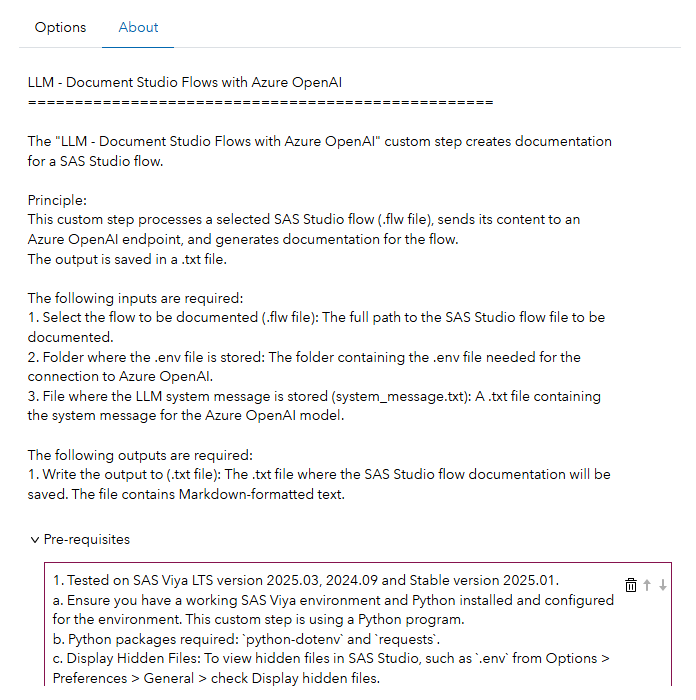
1. SAS Viya
a. A working SAS Viya environment with Python installed and configured. Tested on SAS Viya LTS version 2024.09 and Stable version 2025.01. b. Required Python libraries:
python-dotenv: Loads environment variables from.envfile.requests: Sends API requests to Azure OpenAI.
c. Display Hidden Files: Enable hidden file visibility in SAS Studio via Options > Preferences > General > check Display hidden files.
2. Azure OpenAI Resource
- Azure Subscription: Active subscription required.
- Deployed GPT-4o Model: Set up an Azure OpenAI resource and deploy a GPT-4o model. Details needed:
- Endpoint URL
- API Key
- Deployment Name
3. Environment Configuration (.env File)
Create a .env file with:
AZURE_OAI_ENDPOINT='https://my_endpoint.openai.azure.com/' # change my_prefix
AZURE_OAI_KEY='my_api_key' # change my_key
AZURE_OAI_DEPLOYMENT='gpt-4o' # change to match your deployment name
Example available at extras/.env.sample.txt.
4. System Message File
A system_message.txt file shapes the documentation by guiding the LLM. It defines structure, detail level, and focus areas. Example available at extras/system_message.txt.
5. Output Location
Specify a file path for the generated documentation. Ensure write permissions.
User Interface
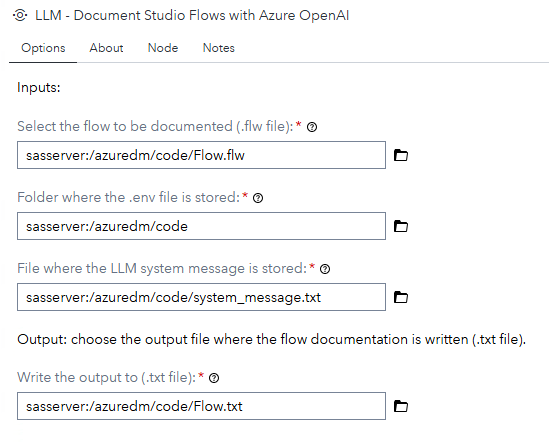
Options Tab
About Tab
Usage
-
Add the custom step to a SAS Studio flow.
-
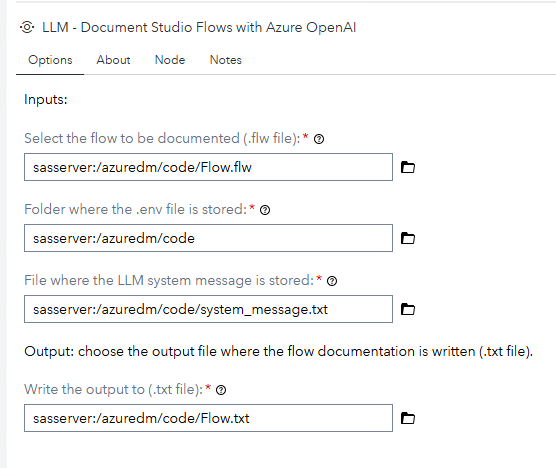
On the Options tab:
Inputs and Outputs
Required Inputs
- Flow to be documented (.flw file): Full path to the SAS Studio flow file to be documented. Example: document
Flow.flwstored insasserver:/azuredm/code/Flow.flw. - Folder for the .env file: Directory containing the
.envfile for the Azure OpenAI connection. - File for LLM system message (system_message.txt): Path to the
system_message.txtfile containing the system message.
Required Outputs
- Output file (.txt): Path to save the SAS Studio flow documentation. The file contains Markdown-formatted text.
Run the SAS Studio flow.
Expected Results
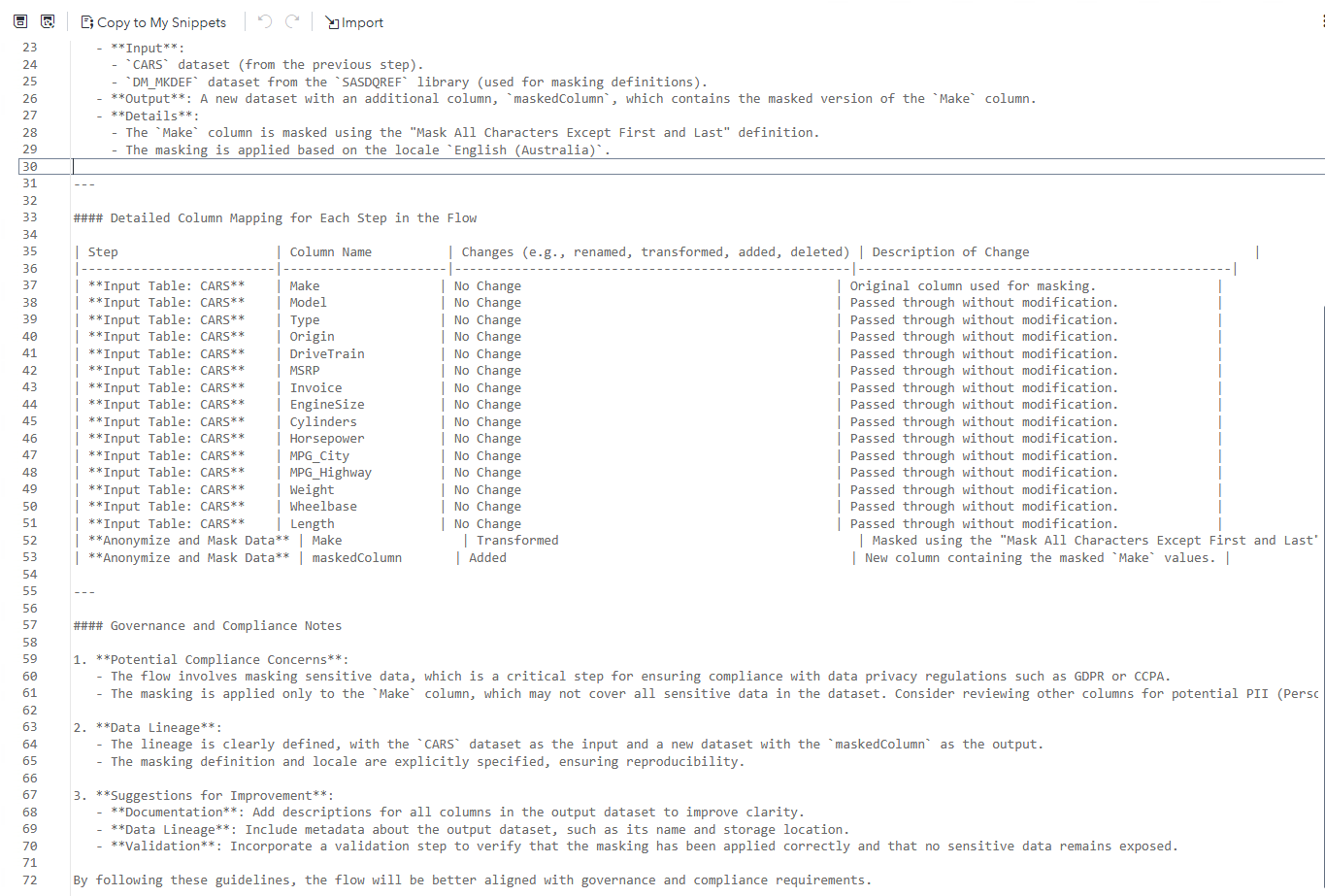
-
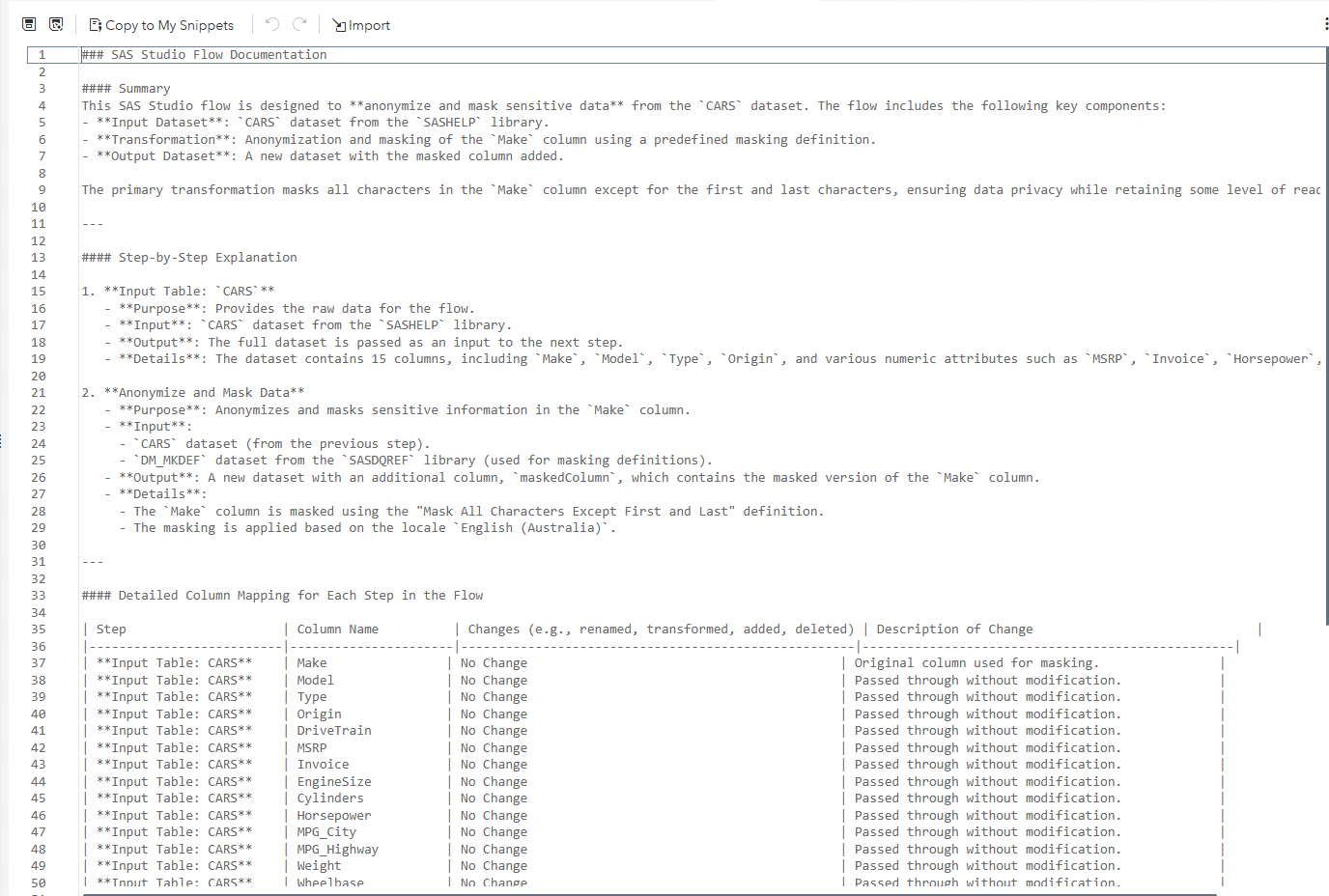
Documentation saved in a .txt file.
-
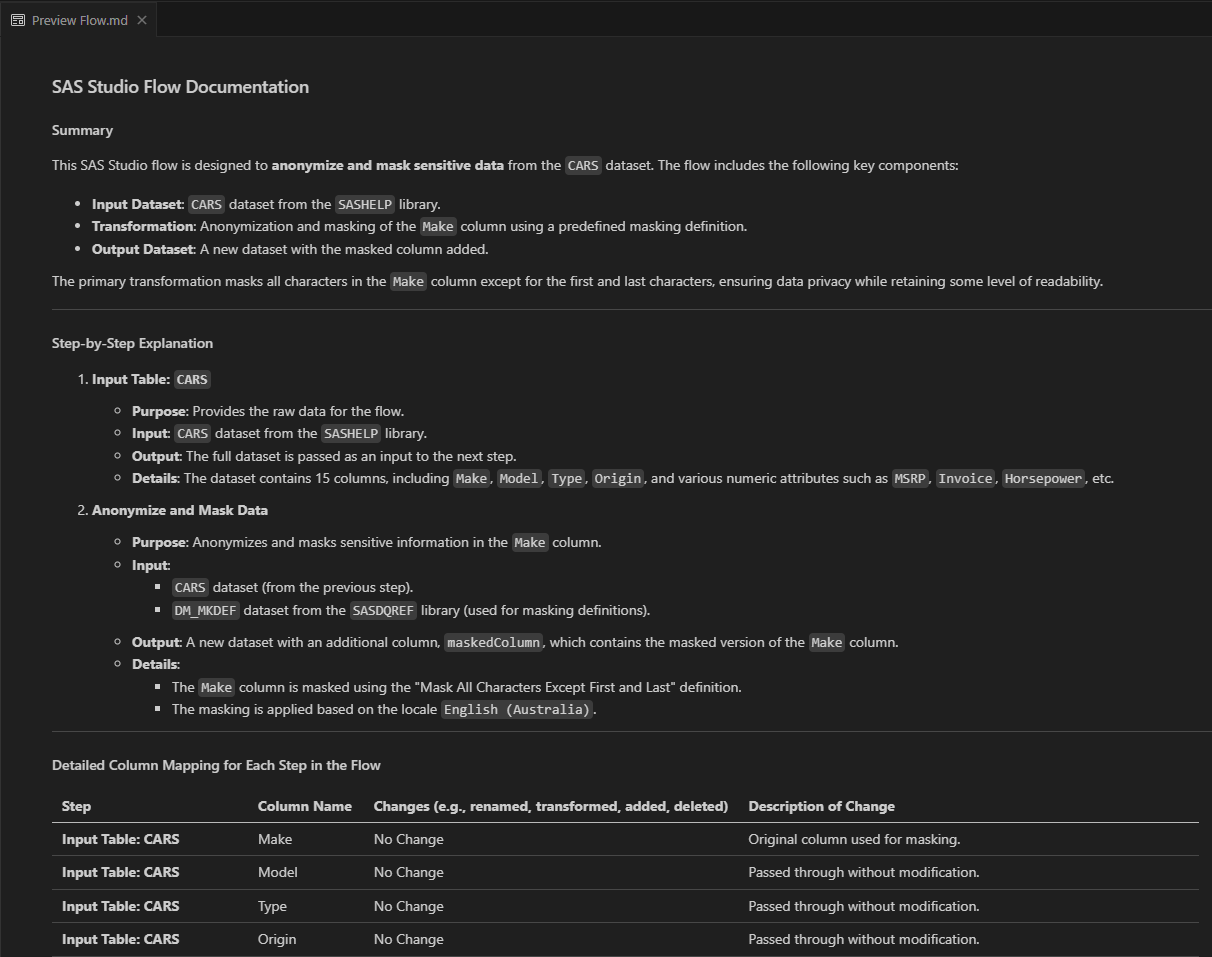
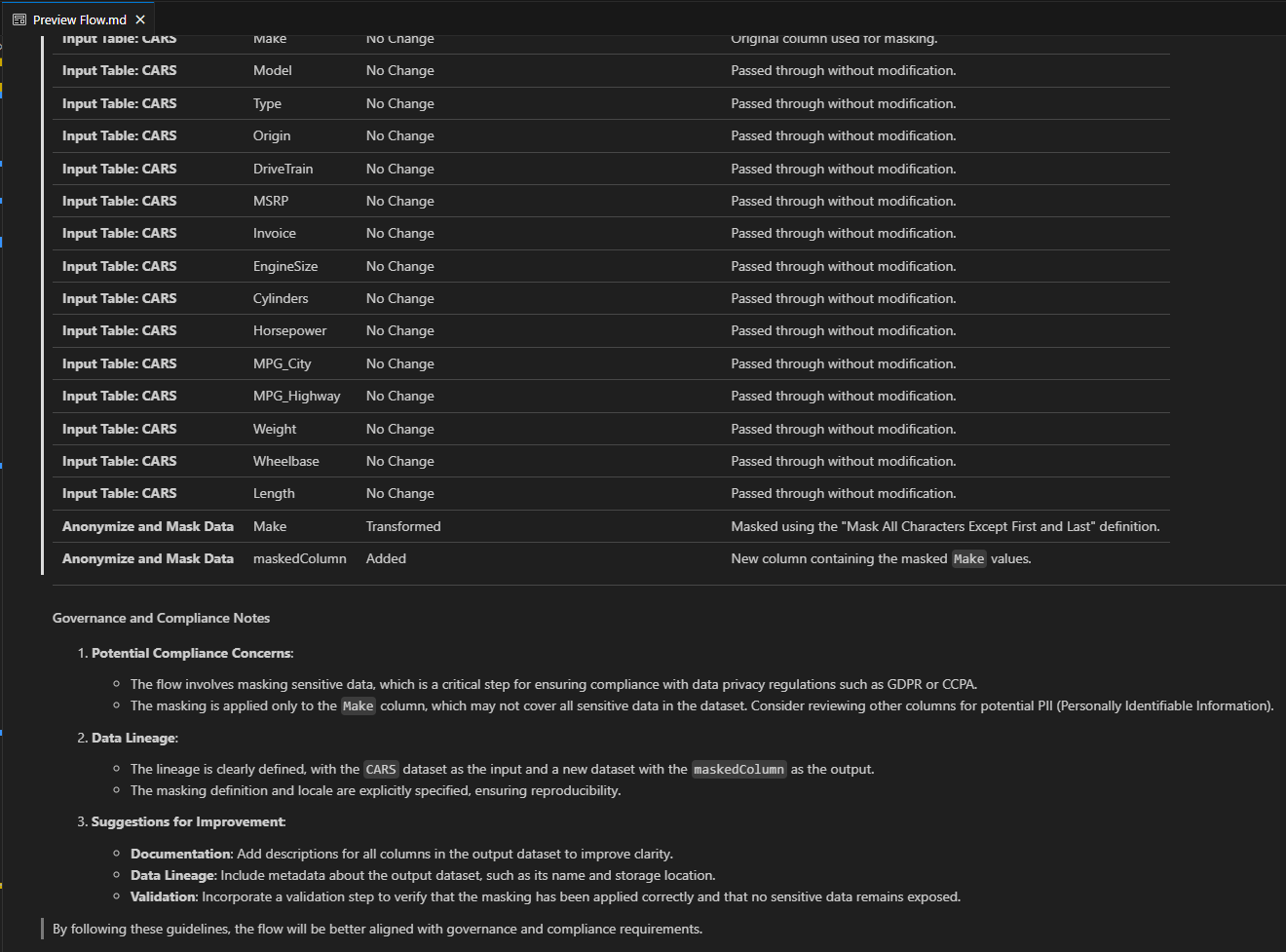
The file contains Markdown. View it with a Markdown viewer, e.g., Visual Studio Code.
Change Log
-
Version 1.2 (23JUL2025)
- Small changes to About tab structure to reflect best practices.
-
Version 1.1 (29JUN2025):
- Implemented reviewer suggestions.
-
Version 1.0 (09APR2025):
- Initial version.